1. Get Machine ID
Help → 3rd Party Licensing. Vendor name is StockwarsLLC. Put your name in User Defined ID and send the generated Machine ID through support.
Use the NinjaTrader Control Center Strategies tab. Load the correct template, ticker, timeframe, and account before enabling anything.
This is the full setup path: strategy package first, template files second, then Strategies tab setup.
Help → 3rd Party Licensing. Vendor name is StockwarsLLC. Put your name in User Defined ID and send the generated Machine ID through support.
Tools → Import → NinjaScript Add-On. Select the official EzAlgos .zip file. Do not unzip it first.
Create the exact template folders under Documents → NinjaTrader 8 → templates → Strategy, then place each XML template file in the matching folder.
Control Center → Strategies tab → right-click → New Strategy. Select the EzAlgos strategy you are setting up.
In the Strategies tab, select the current NQ contract, 1-minute timeframe, and the matching template. Confirm the account before enabling.
Confirm Sim account, current NQ contract, 1-minute timeframe, template, quantity, and 90 Days to load. Then right-click and review historical performance.
Do not guess. Screenshot the error, settings panel, ticker, timeframe, and account. Open a Discord support ticket.
The top sections show where to find 3rd Party Licensing and how to import the strategy package. After import, use the Control Center Strategies tab for setup.
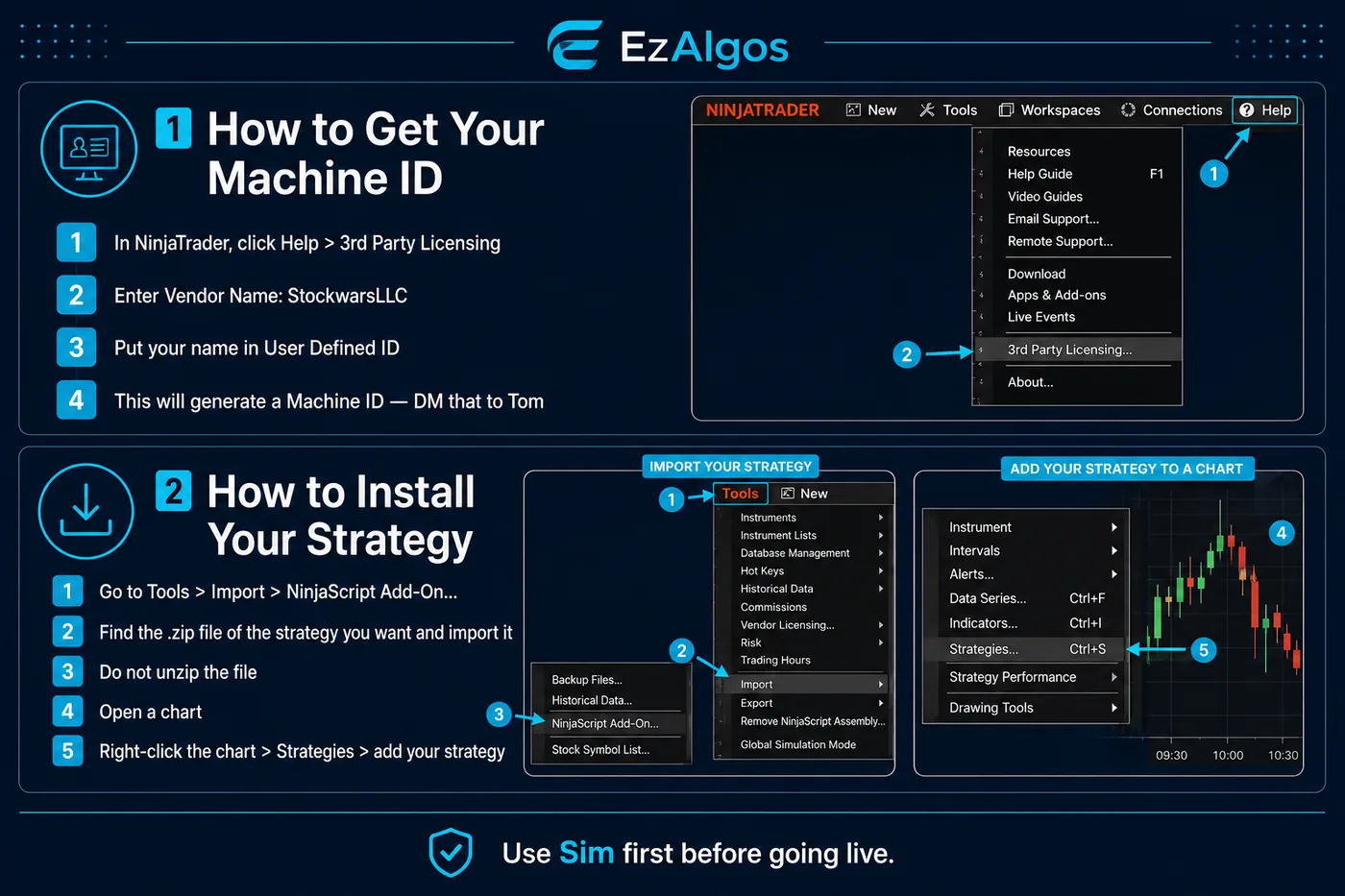
The strategy file gets imported as a .zip. Do not unzip it. For setup, use Control Center → Strategies tab, not chart right-click setup.
NinjaTrader only shows strategy templates when the XML files sit inside the correct strategy-template folders. Folder names must match exactly.
TestVision
Create this folder exactly as shown, then place the Vision XML template files inside it.
EzSwingTrader
Create this folder exactly as shown, then place the EzSwing XML template files inside it.
The template is the part customers miss. Install the XML template files first, then load the right template from the Strategies tab.
Use the exact template provided for the strategy you are running. Vision templates belong in TestVision. EzSwing templates belong in EzSwingTrader.
In NinjaTrader Control Center, open the Strategies tab. Right-click and choose New Strategy.
Right-click inside the Strategies tab → New Strategy → select the EzAlgos strategy.
Use the template dropdown inside the strategy settings window. Pick the template from TestVision or EzSwingTrader, depending on the strategy.
Confirm account, quantity, current NQ contract, 1-minute timeframe, 90 Days to load, and any required template notes.
Before enabling, right-click the strategy and review Historical Performance. It should match the expected result before you run Sim.
These are the only checks customers need at this stage.
Most support tickets come from one of these.
| Issue | Likely cause | What to do |
|---|---|---|
| Import failed | Wrong file, incomplete download, or unzipped package. | Download the official .zip again and import through Tools → Import → NinjaScript Add-On. |
| Strategy not visible | NinjaTrader needs restart or compile. | Restart NinjaTrader. Open NinjaScript Editor and compile once. |
| Historical/live behavior looks wrong | Wrong template, ticker, timeframe, or account. | Reload the exact template in the Strategies tab and recheck historical performance. |
| No trades | Session filter, day filter, data issue, or risk lockout. | Confirm data is moving and the strategy setup matches the template instructions. |
| Unexpected orders | Wrong account, quantity, or template. | Disable the strategy now and open a ticket with screenshots. |
Use the private EzAlgos Discord ticket channel. Include enough information for support to recreate the problem.